

 Likes: 0





Doctor Who Vlc Media Player skin
Legend says that the Face of Boe has watched the Universe grow old ...
Download link: (Newest version, Version 2.0)
[ 0 downloads so far ]
About this skin:
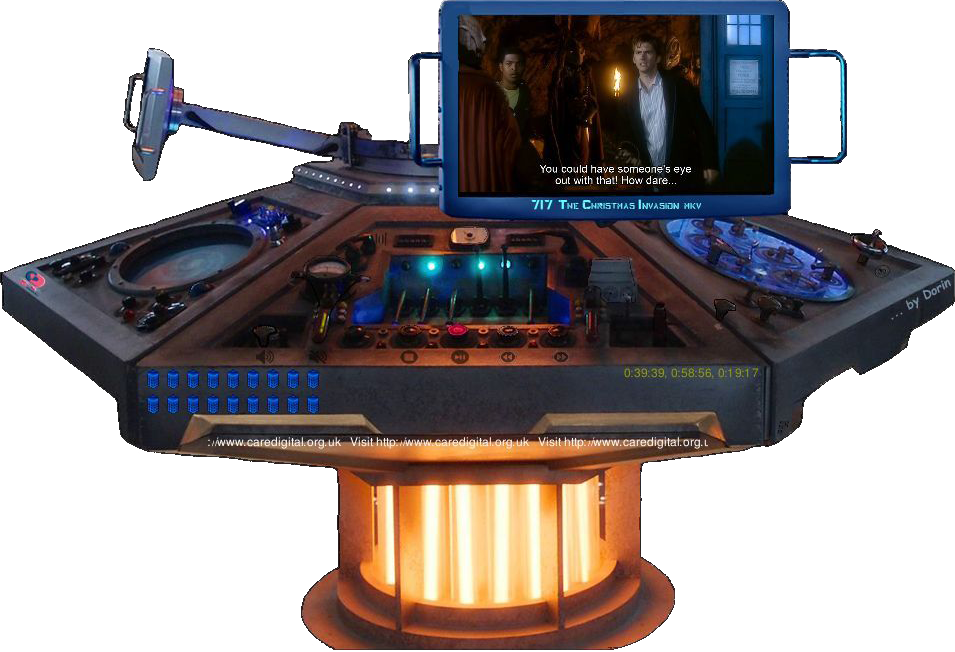
Inspired from the "Doctor Who" tv show, this skin takes the form of the TARDIS-es console.
Initially showing the video frame and media controls, the console lets you access the equaliser and the playlist in separate windows. With a simple and yet elegant design, this skin not only that looks good on your monitor, but also enhances your "Vlc Media Player" experience, letting you select any other option with the touch of a button.
Note that when the video is transfered to the external window, another window will open, playing the current media. You can revert back to "console vision" by clicking the
"Doctor Who (DW)" logo from the top-right corner of the extra window.This skin contains an easter egg, which can be found by following the clues and solving the puzzles, and which will unlock an extra feature of your console. I am very curious who will find this easter egg and unlock the extra feature. Well, good luck and happy hunting !
Sometimes I am really glad the
TARDIS is a Police Phone Box , and not a ... I don't know ... vending machine
  . Can you imagine how ridiculous this skin would look then ?
If you like this skin, don't hesitate to leave a comment, and, why not,
tip to buy me a coffee
Make sure that you check out all my other skins, the software, subtitles, etc.
Improvements since the last version:
- Added stream/media recording option
- Added recording indicator
- Added recording/pause/activity indicators to the minimalised skin
- Added DVD playback support to both maximised and minimised skins
- Remade the external video window behavior algorithm
- Added the option of closing the external video window
- Added audio files detection, and altered the skin's behavior to react accordingly
- Added a "Family" photo
- Remade the compression algorithm
- Reordered and recompressed the skin's files, improving stability and cutting down loading time
- Minor aesthetic and bug/glitches related work
Installation:
After downloading the archived file - "
dr_who_vlcskin.zip " -, unpack the archive and copy the "DrWho.vlt " file on your hard drive, preferably in your "...VideoLAN\VLC\skins " folder. Then right-click the newly copied "DrWho.vlt " file, and select "Open with Vlc Media Player ". Close the Vlc Media player (9). Done. Your "Doctor Who" skin will remain until you will change it.
The Player console:
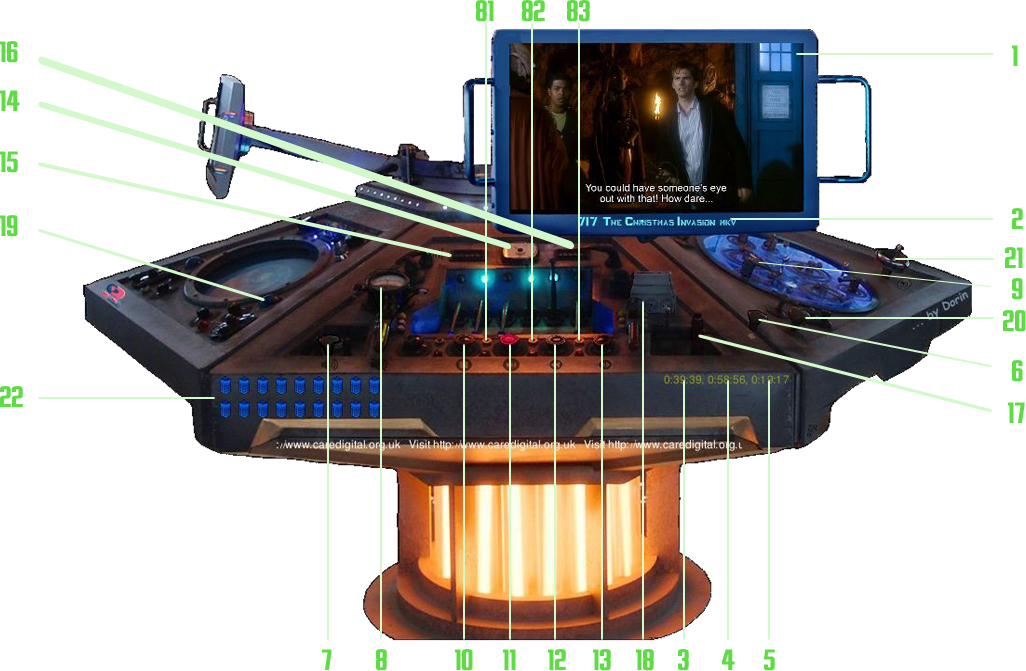
The "Player" console is the main area of this skin, the place where the video is displayed and controlled from. It is the default area, as the skin takes you here immediately after the installation. On closing, "Vlc" remembers the last screen, so it won't bring this one automatically.
In this area you will find the video feed
(1), the timing slider (6), the title of the played media (2), and the buttons to activate the Equaliser (15) and the Playlist (16). You can transfer the video feed to a separate window (24) by pressing the (9) lever, or you can check the skin information, if the lever (17) is clicked. Pressing the main ram (18) will open the settings dialog box, while clicking the side button (19) will activate the minimalised version of the player. You can visualise the media in full screen by clicking the middle button (14).On the right side of the player are the closing valve (21), which closes the player, and the minimalise button
(20), which minimalises the player to the taskbar.The main media control buttons are: play or pause
(11) and stop (10). You can play the previous media in the playlist (12) or the next media in the playlist (13). Also you can slow down the rhythm of the media being played (82), you can speed it up (83), or you can take a screen shot of the playing media (81).The volume of the played media can be controlled with the volume slider (7), or you can mute the media by clicking the manometer
(8).On the lower right edge of the control desk you will find information about the timing of the played media: the current timing position of the media (3), the total time length of the media (4), and the time left to play (5), while on the lower left edge you will find a few buttons (as small
tardises) (22), which will trigger some special extras of this skin. Note that this feature is not activated by default, and you will have to find the easter egg in order to activate it.
The separate video window:
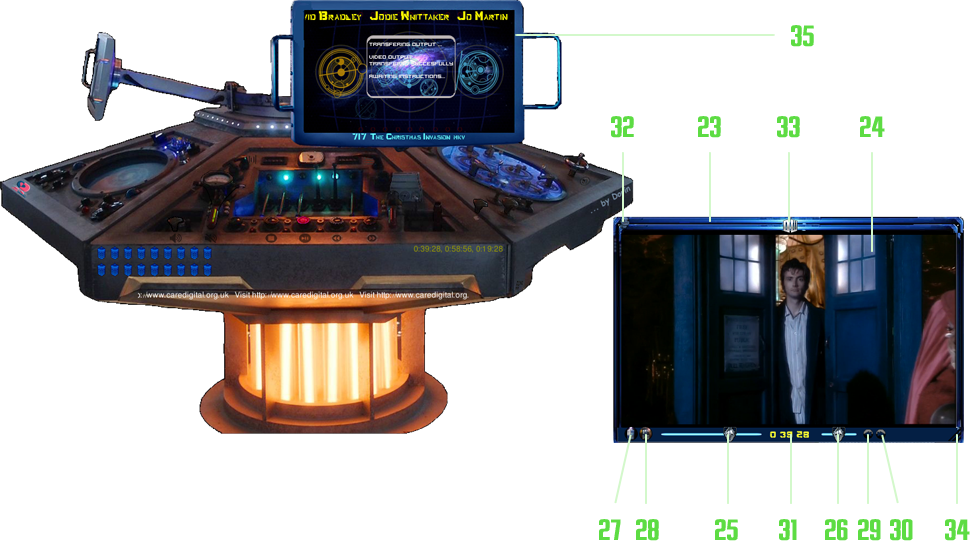
The separate video window
(23) can be activated by pressing the (9) lever, and can be closed, reverting the video feed to the main console, by clicking the "Dr. Who" logo from the middle-top of the window (33).This window comprises of the video playing area
(24), the "Dr. Who" logo (28), the video control buttons - stop video (27), play or pause video (28), play the previous media in the playlist (29), play the next media in the playlist (30) -, the progress/control sliders - the time progress slider (25) and the volume slider (26) -, and the current playing time display (31).The video window can be maximised by double clicking the video playing area
(24) or by clicking the Pting from the upper-left corner (32), or resized by dragging the lower-right corner of its container (34).While the separate video window is open, the video area from the main console will notify you that the video feed is being transferred
(35).
The Equaliser window:
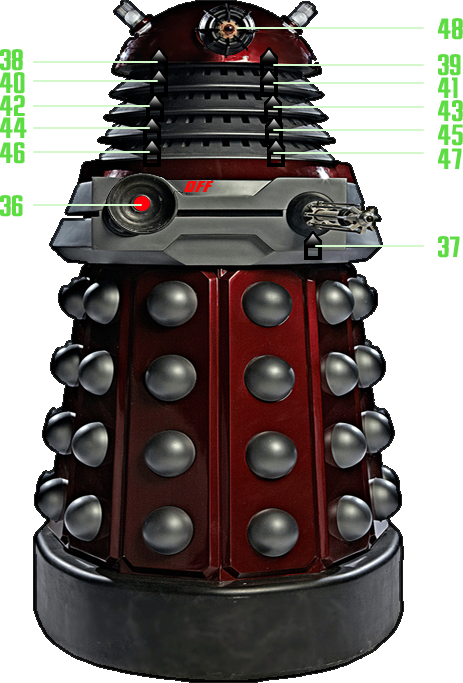
In this screen, you will have the On/Off button
(36), which enables or disables the use of the Equalizer in processing the sound, a main volume amplifier slider (37), and the corresponding sliders for each of the sound frequencies - 60 Hz (38), 170 Hz (39), 310 Hz (40), 600 Hz (41), 1 KHz (42), 3KHz (43), 6 KHz (44), 12 KHz (45), 14 KHz (46) and 16 KHz (47) frequencies.The equalizer can be closed by clicking the eye stalk of the Dalek
(48).
The Playlist window:
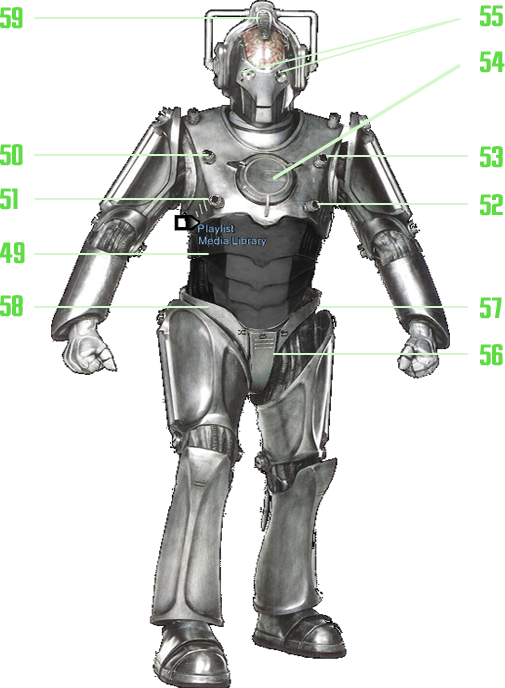
Here you will be able to control your current playlist, shown in the Playlist Window
(49). Using the onscreen controls, you can add media to your playlist (50), delete the selected media from the playlist (51), save your current playlist (52), load an existent playlist (53),or sort your playlist (54).You can see the selected file's info by clicking the one of the eyes of the Cyberman
(55).The manner in which the media from your playlist is played can be controlled with the loop button
(56) - toggling the repeat of your playlist on or off -, the loop button (57) - which lets you repeat the current media -, or the shuffle button (58) - which will play next a random media from your playlist or the next one in the list.You can close the Playlist by clicking the Cyberman's top of the helmet
(59).
The About window:
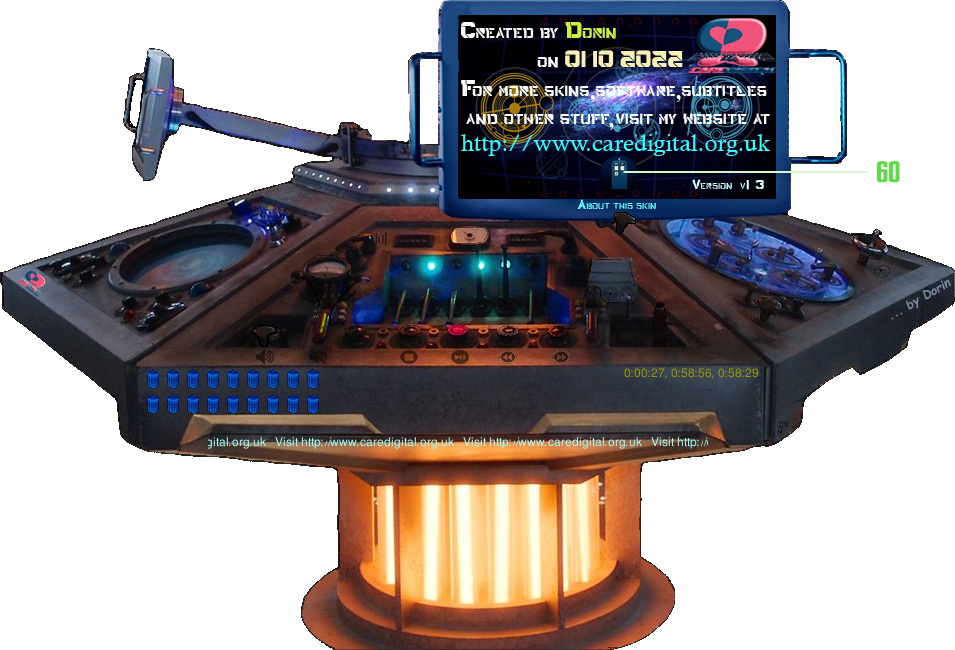
This is just a skin information window. This window can be closed by clicking the "Close the About window"
button (60). Alternately, if the separate video window is open ( - you can open it if it isn't (24) - ), you can click the logo (33), forcing the video to be displayed on the main console, thus closing the "About" window, or click (24) one more time.
The Minimalised interface:
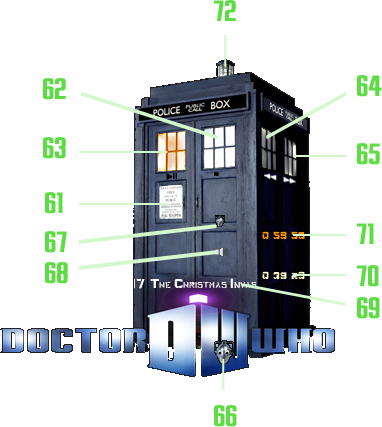
The minimalised interface replaces the standard and more bulkier console, and contains only the strictly necessary items. It is activated by clicking the far left button on the console (19), and can be closed and switched back to the "original version" by clicking the plaque from the left side of the door (61).
The media can be controlled through the Stop button (right front window) (62) and the Play/Pause button (left front window) (63); you can also play the previous media in your playlist by clicking the far left window (64) or the next media in your playlist by clicking the far right window (65); the time can be set through the time slider (66), while the volume can be adjusted with the volume slider (67), or muted with the mute button (68).
The title of the media is displayed across the doors of the Tardis (69), while the current timing position is shown on the bottom far side of the Tardis (70), with the total media time length displayed above it (71).
The player can by closed by pressing the lantern on top of the Tardis (72).
The Full Screen Control Bar:
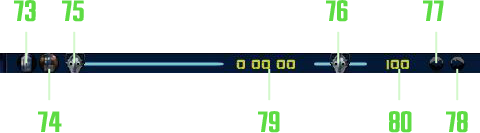
The Full Screen Control Bar appears when the player is in full screen mode, and contains the bear-necessary options. It has the Play/Pause button (74), the Stop Button (73), the media time slider (75) and the volume slider (76), the buttons to play the previous media in the playlist (77) or the next media in the playlist (78), the current position display (79), and the current volume indicator (80).
As mentioned before, this skin includes an easter egg; when found, you will be given access to a special feature. I am curious if anyone will find and crack it, so let me know. You will now how when you'll find it !
This skin was created by Dorin after an original idea on the 1st of October 2022, and was last revised on the 18th of May 2024. Make sure to check from time to time and see if there's an updated version.
I hope you enjoy this skin.
Although free to use as anyone may like, this skin is considered intellectual property of Dorin, and, subsequently, CareDigital.
Credits go to B.B.C., along with my sincerest thanks for creating such a fantastic show, an excellent inspiration in creating this skin.
Do not hesitate to check out my other projects:


 Aici vine textul
Copyright C 01.10.2022, CareDigital.